 Module · LNK Quick Order
LNK Quick Order, ordering by reference for your business customers
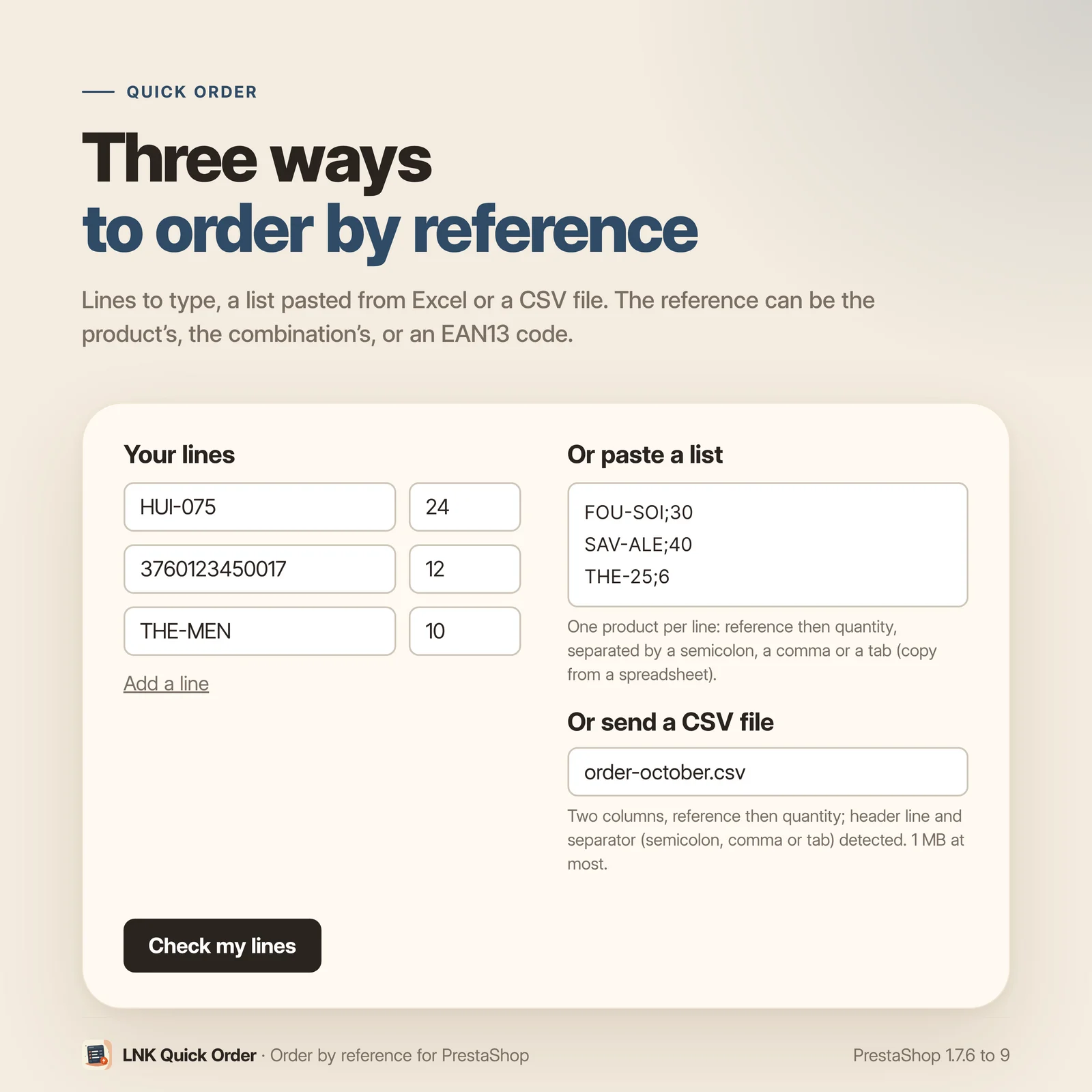
A business buyer knows their references by heart. Making them browse the catalogue for thirty lines means an abandoned cart. LNK Quick Order gives them a page where they find each product by reference, name or barcode, set the quantities in their list, or import their CSV file: everything goes to the cart in one click.
- Version 1.1.7 · PrestaShop 1.7.6 to 8.x
- Version 1.9.7 · PrestaShop 9
- PrestaShop 1.7.6 to 9.x
- PHP 7.1 to 8.4
- No override
Screenshots
Key points
- Live search by reference, name or barcode, with the keyboard or a barcode scanner.
- Order list: −/+ quantities, minimum sale quantity, stock, total, prices read again.
- CSV list import, with a template to download and refused lines explained.
- The whole list added to the cart in one click, without reloading; without JavaScript, by form.
- Product reference, combination reference or EAN13.
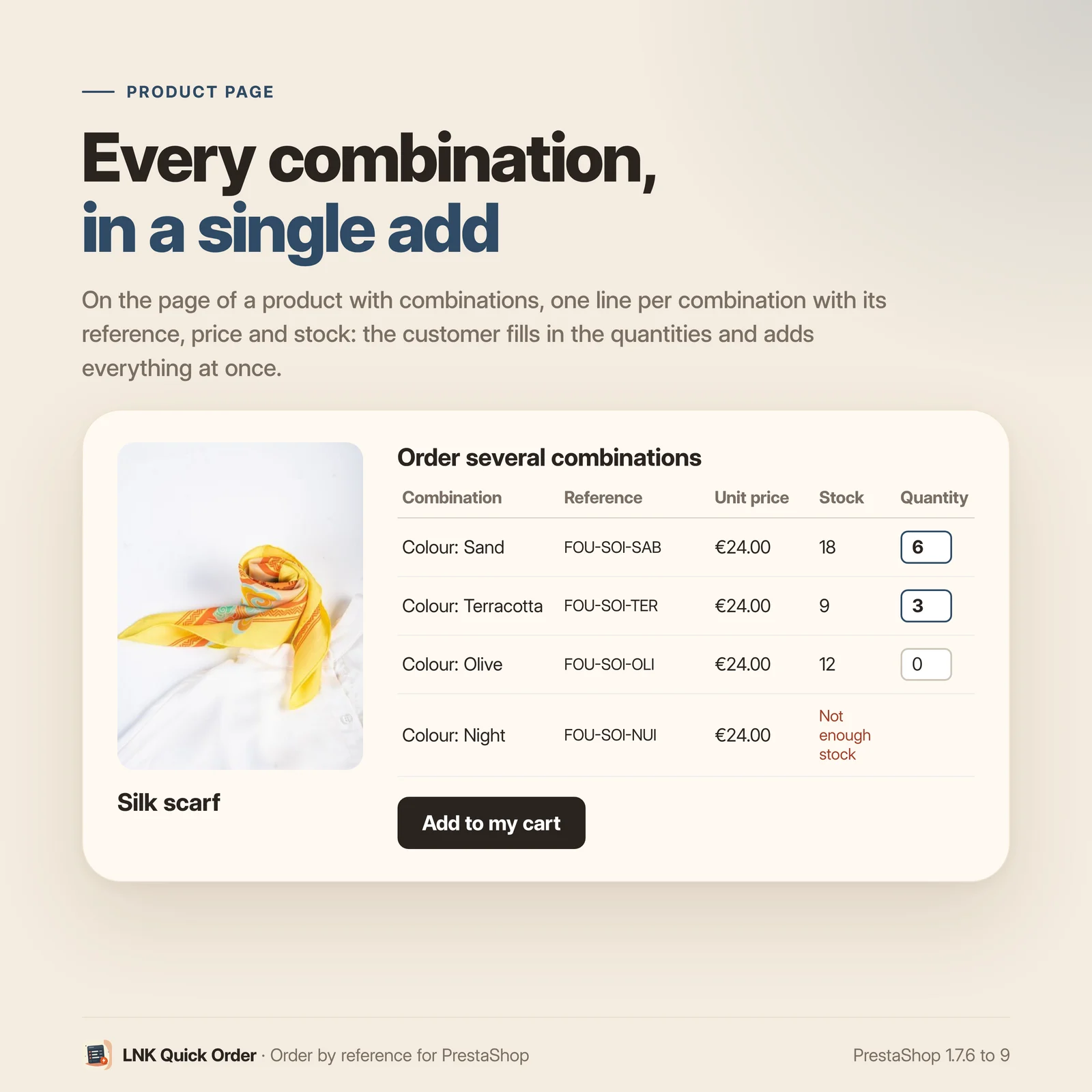
- Table of combinations on the product page, as a colour × size grid, a single add.
- CSV file read in memory, never kept.
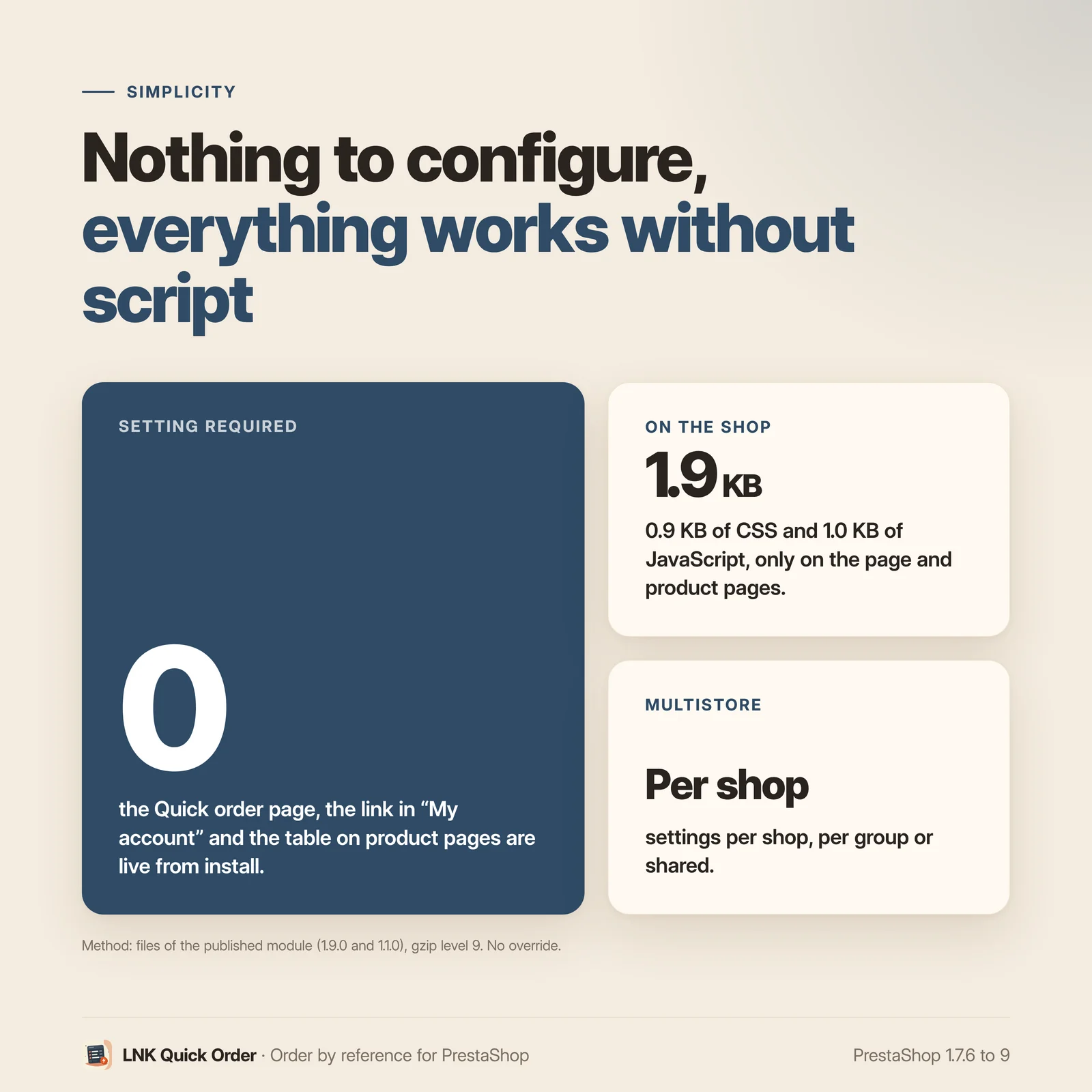
- Nothing to set up: page, links and table in place on installation.
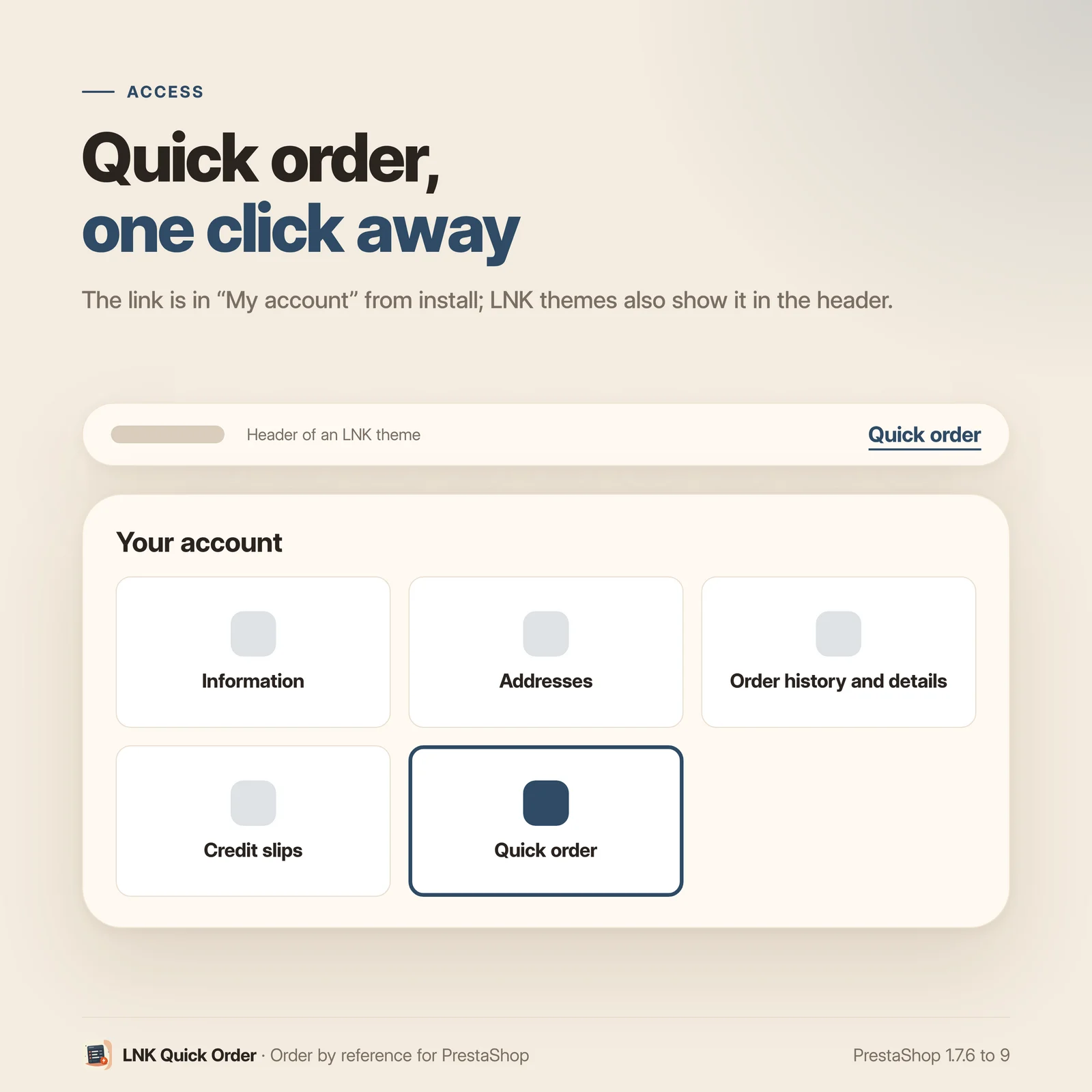
- "Quick order" link at the top of every page, and in "My account"; card on the home page.
- Page address per language, in Traffic & SEO.
- Light product pages (1.9 KB of CSS, 1.8 KB of JavaScript); nothing on other pages.
- Works with LNK Reorder: "From my usual products" link on the page.
- Works with LNK Company Staff: no price shown to a customer whose prices it hides.
- Multistore: settings per shop, per group or common.
- French, English and Arabic (right to left).
- PrestaShop 1.7.6 to 9, no override.
Search by reference, name or barcode
From 2 characters, results show under the field: part of the reference, the product name or the start of the EAN code is enough. Each result shows the image, the name, the reference, the customer's price and the stock status ("In stock", "On order", or the reason for refusal). Results are grouped by product, 8 at most: a product with combinations appears once, with its combinations under it (combination, reference, stock, price), three visible and "+ N more combinations" for the rest. An exact combination reference shows just that one. Everything works with the keyboard, down to each combination: arrows to choose, Enter to add, Escape to close. A barcode scanner works too: the scanned product is added straight away when the reference or EAN is exact.
One order list, one add to cart
The chosen products stack up in "Your order": image, name, reference, unit price, −/+ quantity and line total. The quantity starts at the minimum sale quantity and stays capped at the stock when the shop refuses out-of-stock orders, with the note "Minimum N" or "Only N in stock". Prices are read again when a quantity changes, to follow quantity discounts; the total is tax incl. or tax excl. according to the customer's group. One button adds the whole list to the cart, without reloading the page: added lines leave the list, those the cart refuses stay in it with their reason. The list is kept in the browser: a reload does not lose it.
Import a list as CSV
The customer drops their file (or picks it on their computer), and its valid lines go straight into
the list. Two columns, reference and quantity; the header line and the separator are detected,
.csv or .txt (an Excel workbook is saved as CSV), 1 MB at most. A template to fill can be
downloaded from the page. Refused lines are listed with their reason: reference not found,
insufficient stock, several products, not available. The file is read in memory and never kept.
All combinations at once on the product page
On the page of a product with combinations (sizes, colours, volumes), a table gives one line per combination with its reference, price and stock, and a quantity field. The customer fills the quantities wanted and adds everything at once. The table shows from the number of combinations you choose, under the description, outside the theme's add to cart form. For a product with two attributes (colour and size, for example), the table becomes a grid: colours in rows, sizes in columns, one quantity box per combination with its stock.
A link at the top of every page
A "Quick order" link is added to the theme's top bar, next to the contact link, for visitors and customers alike. Another link is in "My account", in the theme's style: an account menu tile on Hummingbird, columns on Classic. The page address is set per language in Shop parameters › Traffic & SEO.
On the home page, a quick order card can be added: locked for a visitor, with a login link; a few lines and a CSV file for a logged-in customer, checked on the Quick order page and its live search.
Nothing to set up
Once installed, the page is online at /quick-order (/commande-rapide in French), the links are
at the top of the pages and in "My account", and the table shows on product pages with
combinations. Settings fit in three tabs, with a live preview that follows the open tab, and
mostly serve to remove what you do not want.
Light and fast
Figures measured on the delivered module, compressed (zlib, level 9). Product pages stay light: only the table of combinations loads there, 1.9 KB of CSS and 1.8 KB of JavaScript. The Quick order page adds 2.4 KB of CSS and 7.1 KB of JavaScript. No stylesheet or script on other pages: the top link needs none. A named appearance adds its stylesheet, 0.4 KB at most, only when it is chosen. Without JavaScript, the page is still a form of reference + quantity lines and a CSV file.
Compatible with PrestaShop 1.7.6, 8 and 9
Two versions of the module, one per generation: 1.1 for PrestaShop 1.7.6 to 8.x, 1.9 for PrestaShop 9, with a native settings page in each back office, under Orders. Classic and Hummingbird themes with no setting; LNK themes place the table and the header link through their hooks (theme contract). No override, no table, no external call.
Frequently asked questions
Where is the Quick order page?
At /commande-rapide in French and /quick-order in the other languages, with a "Quick order"
link at the top of every page and another one in "My account". A theme can also place the link
wherever it wants ({widget name='lnk_quickorder' mode='link'}).
Which references can the customer type?
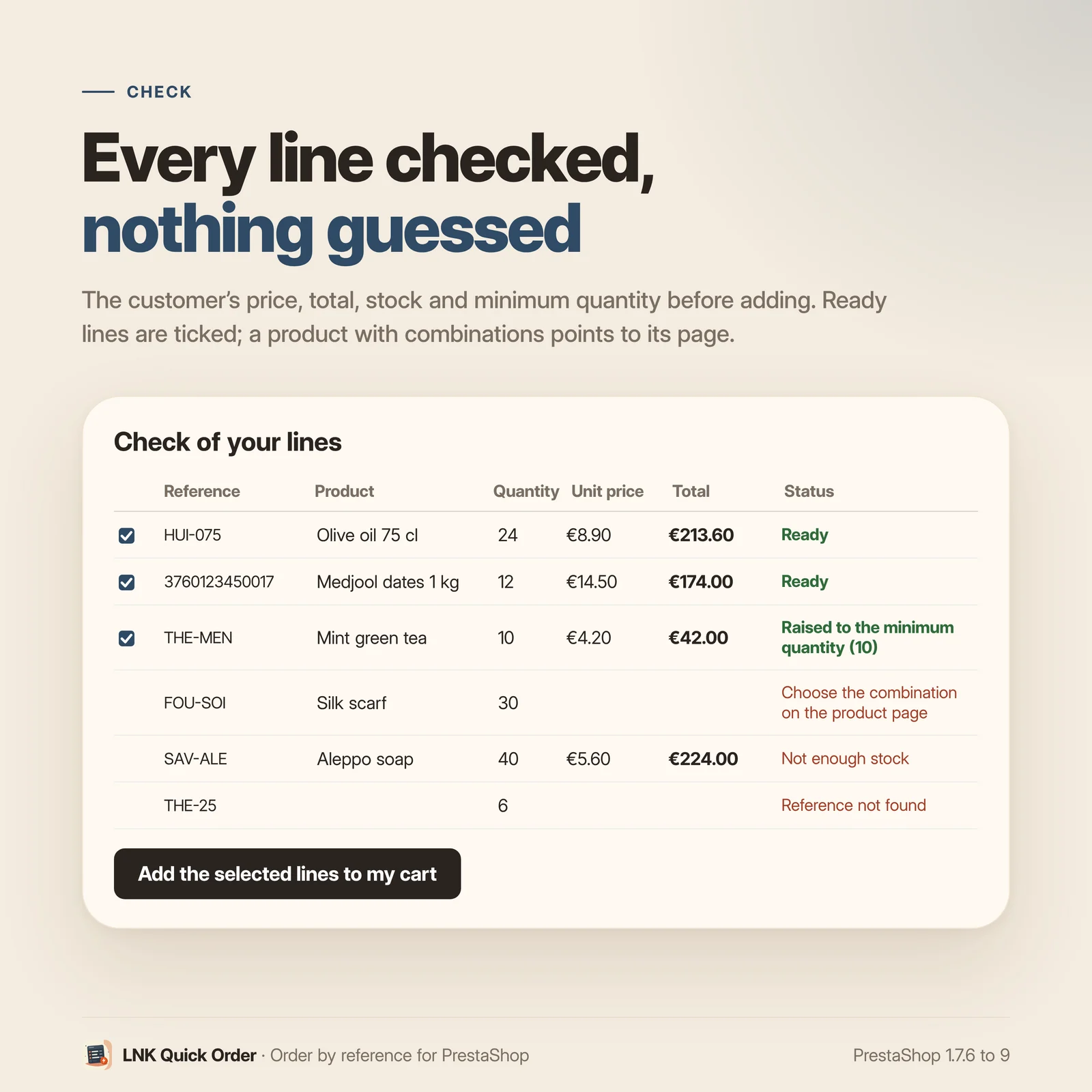
The product's reference, a combination's reference, or the EAN13 code. In the search, a product with combinations appears once, with its combinations under it (combination, reference, stock, price): three visible, "+ N more combinations" for the rest. An exact combination reference shows just that combination. In a file, if several combinations of the same product share a reference, the customer is invited to choose the combination on the product page; if several different products share a reference, the line is flagged; nothing is guessed.
How do I import a list?
With "Import a list" on the page: drop the CSV file in the zone, or browse your computer. The
"Download a template" link gives a file ready to fill (header reference;quantity and two
references from the shop). From Excel, save the sheet as CSV (File › Save As › CSV). Valid lines go
straight into the order list; the others are listed under "Lines not added", with their reason
(reference not found, insufficient stock, several products, not available…). A line without a
quantity counts as 1.
Which format for the CSV file?
Two columns, reference then quantity, separated by a semicolon, a comma or a tab. The header line,
if any, is recognised and skipped. .csv or .txt files only:
an Excel workbook (.xlsx) is first saved as CSV (File › Save As › CSV). A reference the shop does
not know is flagged "Reference not found" and is not added. 1 MB at most; the file is read in
memory and never kept on your server.
Does the module check stock and prices?
Yes, before adding. The search shows the customer's price (the one of their group) and the stock status: "In stock", "On order", or the reason for refusal. In the list, the quantity is capped at the stock when the shop refuses out-of-stock orders ("Only N in stock"), and prices are read again from the server when a quantity changes, to follow quantity discounts. The total is tax incl. or tax excl. according to the customer's group; final prices are calculated in the cart. The add to cart then goes through PrestaShop, like the native button, with the same checks: a refused line stays in the list with its reason.
What happens below the minimum sale quantity?
In the list, the quantity starts at the minimum sale quantity of the product or the combination and does not go below it; the line says so ("Minimum N"). Without JavaScript, the quantity typed is raised to the minimum, and the report says so ("Raised to the minimum quantity").
How many products can a list hold?
Up to 500, configurable from 10 to 500 ("Products in a list at most"). Beyond, the lines of a file are not read and the customer is told.
Does the table of combinations replace the theme's selector?
No: it shows under the description, in addition, from the number of combinations you choose (2 by default). For a product with two attributes (colour and size), it takes the form of a grid: colours in rows, sizes in columns, one quantity box per combination. An LNK theme can place it elsewhere through its dedicated hook.
Is JavaScript needed?
No. Without JavaScript, the page is a form of five reference + quantity lines and the CSV file, checked then added, and the product table also works with a form; the customer goes back to the cart after adding. With it, they get the live search and the order list, adding happens without reloading and the header cart updates.
Does the module slow my shop down?
No. Product pages stay light: only the table of combinations loads there, 1.9 KB of CSS and 1.8 KB of JavaScript compressed. The Quick order page adds 2.4 KB of CSS and 7.1 KB of JavaScript. A named appearance (Discreet, Editorial, Contrasted) adds its stylesheet, 0.4 KB at most, only when it is chosen. Nothing on other pages: the top link adds no stylesheet and no script.
Does it work with multistore?
Yes. Settings apply to all shops, to a group or to one shop, and the page shows their scope. Each shop only finds its own products.
What is left if I uninstall the module?
Nothing. The module has no table and no override: uninstalling removes its settings and its tab. Carts already filled stay your customers'.
Does it work with LNK Reorder?
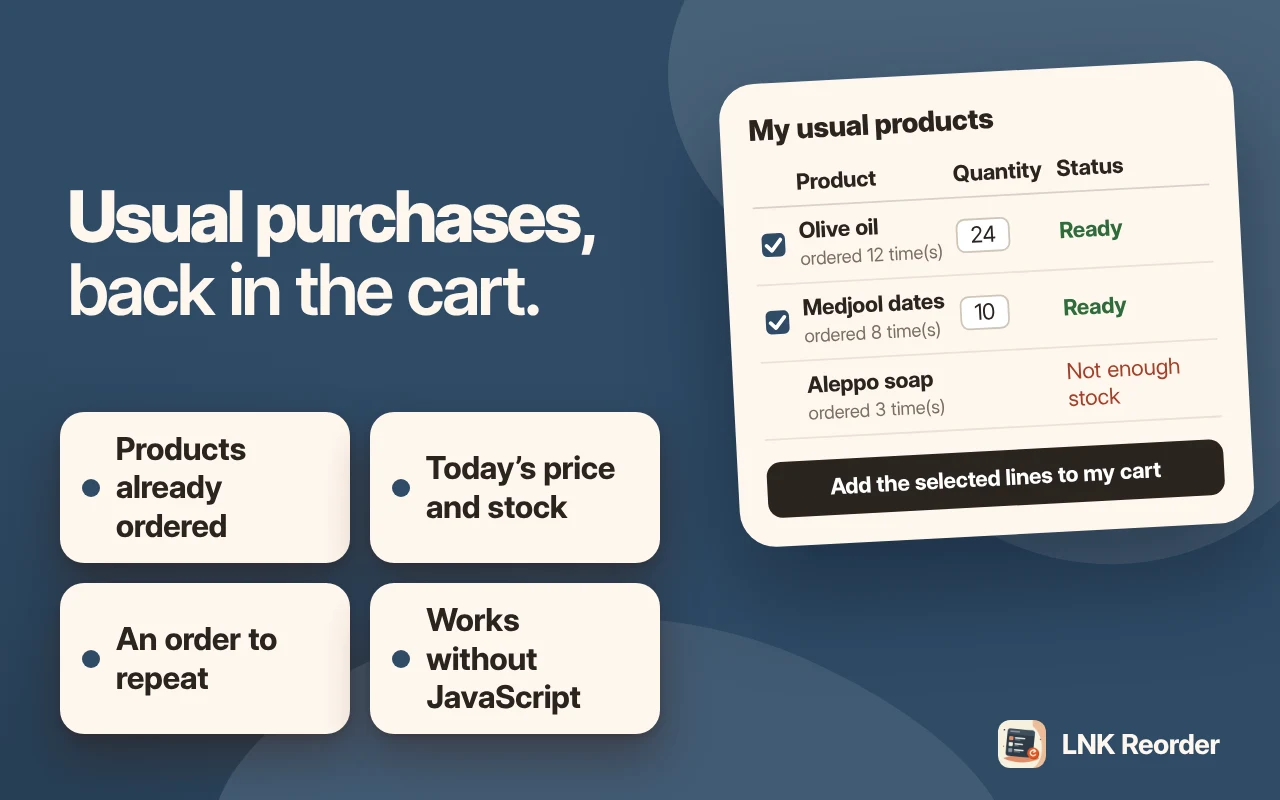
Yes, without any setting. When LNK Reorder is installed, the Quick order page shows a "From my usual products" link at the top for a logged-in customer who has already ordered: they go from typing references to the list of their usual products. Each module also works on its own.
Does it work with LNK Company Staff?
Yes, without any setting. When LNK Company Staff hides prices from a customer, the Quick order page and the product table show no amount to that customer; they can still check their references and fill their cart. When they are not allowed to order, adding to the cart is still allowed: LNK Company Staff blocks the order itself, and Quick order never creates an order. Without that module, nothing changes.
Where does the link to the quick order show?
At the top of every page, in the theme's top bar, next to the contact link: a "Quick order" link,
for visitors and customers alike. It is removed with the "Link at the top of every page" setting (on
by default). Another link is in "My account" ("Link in My account" setting). On the home page, a
quick order card can be added ("Card" section of the settings: home page or top of the home page):
locked for a visitor, a few lines and a CSV file for a logged-in customer, checked on the Quick
order page. A theme also places it with {widget name='lnk_quickorder' mode='card'}.
Can a customer search by name?
Yes. From 2 characters, the search finds part of the reference, the product name or the start of the EAN barcode, up to 8 products per search, grouped by product. Arrows to choose, each combination included, Enter to add to the list. A barcode scanner works too: the scanned product is added when there is only one orderable result or the reference or EAN is exact.
Can I change the page address?
Yes, in Shop parameters › Traffic & SEO, page module-lnk_quickorder-order, one address per
language. Installation fills /commande-rapide in French and /quick-order elsewhere, never
replacing an address you have already typed. The old /commande-rapide address, opened in a
language that has another one, redirects (301) to that language's address.
Release history
-
Version 1.9.7 PrestaShop 9
New
- Appearance: four named appearances for the product table, the card and the Quick order page, chosen on the module page: Theme style (default), Discreet, Editorial, Contrasted. Each appearance has its own stylesheet, loaded only when it is chosen. Without the setting, nothing changes.
Fixes
- Documentation (FAQ, product page; fr, en, ar): the weight mentions the stylesheet of a named appearance (0.4 KB at most, loaded only when chosen).
- Home page card on Hummingbird: it touched the edges of the screen. On the full-width home page of Hummingbird (and its child themes), it now sits in the theme container, like the other blocks. Classic and the other themes do not change.
-
Version 1.9.6 PrestaShop 9
Fixes
- Page and tab in each customer's language: a language added after the installation (Arabic or English on a shop installed in French) got a copy of French from PrestaShop: the "Commande rapide" page title (browser tab), the /commande-rapide address and the back-office tab name. It now gets the title, address and name in its own language (any other language gets English), and the update fixes those that were only a copy. The old /commande-rapide address redirects to the new one (301). A title, address or name you changed is never touched.
-
Version 1.9.5 PrestaShop 9
New
- Product page: colour × size grid for a product with exactly two attribute groups. The colour group in rows (otherwise the one with fewer values), the other in columns, in the catalogue order of the values and under the public name of the group; one box per combination with its quantity and stock, "Out of stock" and a dash when it cannot be ordered, an empty box when the combination does not exist. The "N item(s) · total" summary, the "Add to my cart" button and the add without reloading stay those of the table. On mobile, the grid scrolls and its first column stays fixed. One, three groups or more: the table of combinations, as before.
Changes
- Quick order card on the home page ("Card" section of the settings, home page or top of the home page, or the theme's {widget name='lnk_quickorder' mode='card'}): still there, locked for a visitor, three lines and a CSV file for a logged-in customer; it leads to the Quick order page and its live search. Its stylesheet (card.css, 0.5 KB) is loaded only on the home page that shows it. Upgrade from 1.9.3: placement and texts kept.
Fixes
- Arabic: totals of the list and of the table in Latin digits, like the prices of the shop (the browser rendered Eastern Arabic digits).
- Cart of a logged-in customer who had none yet: created like the native cart (the one prepared by PrestaShop, with the customer's key). Before, after an add through Quick order, the cart page stopped on an error.
- Marketplace page and FAQ: quickorder.js weight given as 7.0 KB instead of 7.1 KB. Weights taken from the factory budget tool (product page: 1.9 KB of CSS and 1.8 KB of JavaScript with the grid).
- Compatibility: package versions up to date (the page still said 1.9.3 / 1.1.3).
- "In stock" colour of the product page: variable --lnk-quickorder-success (named --lnk-quickorder-ok in 1.9.4, outside the shared vocabulary), falls back on the base --lnk-success (and not --lnk-ok, unknown to LNK themes).
- Background of blocks, results and picked lines: variable --lnk-quickorder-surface (named --lnk-quickorder-soft in 1.9.4, outside the shared vocabulary), falls back on the base --lnk-surface (and not --lnk-soft).
- Arabic: headers of the table of combinations without letter spacing (it broke the joined letters).
Show the 13 previous versions
-
Version 1.9.4 PrestaShop 9
New
- Quick order page: live search. From 2 characters, part of the reference, the product name or the start of the EAN barcode; results with image, name, reference, the customer's price and the stock status ("In stock", "On order" or the reason for refusal). Results grouped by product: a simple product is a single line; a product with combinations appears once (image, name, "N combinations") with its combinations under it (combination, reference, stock status, price), 3 visible and "+ N more combinations" for the rest; up to 12 combinations per product, beyond that a line says to type more of the reference or the name; up to 8 products per search. An exact combination reference shows just that combination. Arrows to choose (including each combination line), Enter to add, Escape to close. A barcode scanner works: Enter before the results arrive adds the product when there is only one orderable match or when the reference or EAN is exact.
- "Your order" list: one line per product (image, name, reference, unit price, −/+ quantity, line total, remove). Starting quantity at the minimum sale quantity, capped at the stock when the shop refuses out-of-stock orders, with the note "Minimum N" or "Only N in stock". Total tax incl. or tax excl. according to the customer's group ("Final prices are calculated in the cart"), "Empty the list", and one "Add to my cart" button for the whole list at once: the cart updates without reloading, added lines leave the list, refused lines stay in it with their reason. Prices read again from the server when a quantity changes (quantity discounts) and when the customer comes back. List kept in the browser (per shop): a reload does not lose it.
- "Import a list": CSV file drop zone (drag and drop or browse) and "Download a template" link (header reference;quantity and two references from the shop). Valid lines go into the list; the others are listed under "Lines not added" with their reason (reference not found, insufficient stock, several products, not available…). Same file rules as before.
- "Quick order" link in the theme's top bar (displayNav1, next to the contact link), for visitors and customers; setting "Link at the top of every page", on by default.
- Page address per language in Shop parameters › Traffic & SEO (page module-lnk_quickorder-order): installation and upgrade fill /commande-rapide in French and /quick-order in the other languages, never replacing an address already typed. The old /commande-rapide address opened in a language that has another one redirects (301) to that language's address.
Changes
- Without JavaScript, the page is still a form of five reference + quantity lines and the CSV file, checked then added (report as before).
- "My account" link follows the theme's markup: Hummingbird's account-menu component (and its child themes'), like the other tiles and in the side menu; Classic's columns unchanged.
- Settings in three tabs, as in the other LNK modules: "Quick order page" (link at the top of every page, link in My account, CSV file import), "Product page" (table of combinations, minimum number of combinations) and "Advanced" (products in a list at most, 10 to 500). The live preview follows the open tab: top link and Quick order page for "Quick order page" and "Advanced"; product selector and that product's table of combinations only for "Product page" (the selector used to sit above the whole preview and only changed the table).
- Hidden prices (group without prices, or LNK Company Staff): no price and no total in the search and in the list.
- Theme contract: line.tpl and nav.tpl templates, new markup hooks and CSS variables (see THEME-CONTRACT.md). A theme that overrides content.tpl keeps the old page until its override is updated.
- Product page: table of combinations redesigned (card, reference under the combination, stock badge "N in stock" or "Out of stock", −/+ buttons, picked rows highlighted, "N item(s) · total" summary, button enabled once a quantity is set, compact rows on mobile). It loads only table.css and table.js (1.7 KB + 1.7 KB compressed).
- Mobile: the "Quick order" link becomes an icon next to the account icon and an entry in the mobile menu, next to Contact (Hummingbird and Classic).
Fixes
- Back-office preview empty ("Nothing to show") with PrestaShop's debug mode on: the page called a front-office token function that needs a logged-in customer. Preview errors are now written to the PrestaShop log.
- Disabled product, or one with visibility "Nowhere": treated as not found everywhere (search, lines read again by id, add to cart). Before, earlier versions included, such a product could be added to the cart by its id through the add request. The CSV template only uses visible, orderable products.
Removed
- "Or paste a list" box on the page.
- Quick order card on the home page ("Card" section of the settings: "Placement", "Card texts"; LNK_QO_CARD_HOOK, LNK_QO_CARD_TITLE, LNK_QO_CARD_TEXT, displayHome and displayContentWrapperTop hooks): removed by the upgrade. {widget name='lnk_quickorder' mode='card'} now renders the link.
-
Version 1.9.3 PrestaShop 9
New
- Quick order card for the home page (home page, top of the home page, or the theme's {widget name='lnk_quickorder' mode='card'}): locked for a visitor with a login link, three lines and a CSV file for a logged-in customer, checked on the Quick order page. Title and text editable in each language; both states previewed in the back office.
- With LNK Company Staff (contract lnk.companies.rights/1, no dependency): no amount on the page or in the product table for a customer whose prices that module hides; price columns removed (also for a group that does not see prices). Adding to the cart is still possible.
Changes
- Product page and FAQ:
.csvor.txtfiles only (an Excel workbook is saved as CSV), unknown references flagged in the report.
-
Version 1.9.2 PrestaShop 9
Fixes
- A line removed from the cart by another module when the cart is saved (for example a "Quote only" product from LNK Quotes) is no longer counted as added. The cart is read again after each addition, and that module's message ("This product is ordered on quote…") shows with the result.
- Quick order page: the message after adding now shows at the top of the block (it only appeared on the product page table).
- Theme contract: the suggested {widget} is wrapped in the Module::isEnabled guard (module missing or disabled: the page no longer fails).
-
Version 1.9.1 PrestaShop 9
New
- With LNK Reorder (contract lnk.reorder.link/1, no dependency): a "From my usual products" link at the top of the page, for a logged-in customer who has already ordered.
-
Version 1.9.0 PrestaShop 9
New
- "Quick order" page (/commande-rapide): reference + quantity lines, pasted list "ref ; qty" (copy from a spreadsheet), CSV file (header and separator detected, 1 MB at most, never kept).
- Check before adding: product, combination, customer's price and total, or reason for refusal (not found, several products, combination to choose, stock, not for sale); quantity raised to the minimum sale quantity.
- Grouped add to cart, without JavaScript or without reloading (native updateCart event, then lnk:quickorder:added).
- Table of combinations on the product page, outside the theme's add to cart form, beyond a configurable number of combinations.
- Link in "My account"; header widget for themes; theme contract lnk.quickorder.table/1.
- Settings page on the common look of LNK modules, under Orders, with a live preview of the page and the table.
- Multistore: settings per shop, per group or common.
- French, English and Arabic (right to left).
-
Version 1.1.7 PrestaShop 1.7.6 to 8.x
New
- Appearance: four named appearances for the product table, the card and the Quick order page, chosen on the module page: Theme style (default), Discreet, Editorial, Contrasted. Each appearance has its own stylesheet, loaded only when it is chosen. Without the setting, nothing changes.
Fixes
- Documentation (FAQ, product page; fr, en, ar): the weight mentions the stylesheet of a named appearance (0.4 KB at most, loaded only when chosen).
- Home page card on Hummingbird: it touched the edges of the screen. On the full-width home page of Hummingbird (and its child themes), it now sits in the theme container, like the other blocks. Classic and the other themes do not change.
-
Version 1.1.6 PrestaShop 1.7.6 to 8.x
Fixes
- Page and tab in each customer's language: a language added after the installation (Arabic or English on a shop installed in French) got a copy of French from PrestaShop: the "Commande rapide" page title (browser tab), the /commande-rapide address and the back-office tab name. It now gets the title, address and name in its own language (any other language gets English), and the update fixes those that were only a copy. The old /commande-rapide address redirects to the new one (301). A title, address or name you changed is never touched.
-
Version 1.1.5 PrestaShop 1.7.6 to 8.x
New
- Product page: colour × size grid for a product with exactly two attribute groups. The colour group in rows (otherwise the one with fewer values), the other in columns, in the catalogue order of the values and under the public name of the group; one box per combination with its quantity and stock, "Out of stock" and a dash when it cannot be ordered, an empty box when the combination does not exist. The "N item(s) · total" summary, the "Add to my cart" button and the add without reloading stay those of the table. On mobile, the grid scrolls and its first column stays fixed. One, three groups or more: the table of combinations, as before.
Changes
- Quick order card on the home page ("Card" section of the settings, home page or top of the home page, or the theme's {widget name='lnk_quickorder' mode='card'}): still there, locked for a visitor, three lines and a CSV file for a logged-in customer; it leads to the Quick order page and its live search. Its stylesheet (card.css, 0.5 KB) is loaded only on the home page that shows it. Upgrade from 1.1.3: placement and texts kept.
Fixes
- Settings: the preview follows the open section (product page, card); its script, loaded before the page by the 1.7.6 to 8.x back office, did not find the form yet.
- Arabic: totals of the list and of the table in Latin digits, like the prices of the shop (the browser rendered Eastern Arabic digits).
- Cart of a logged-in customer who had none yet: created like the native cart (the one prepared by PrestaShop, with the customer's key). Before, after an add through Quick order, the cart page stopped on an error.
- Marketplace page and FAQ: quickorder.js weight given as 7.0 KB instead of 7.1 KB. Weights taken from the factory budget tool (product page: 1.9 KB of CSS and 1.8 KB of JavaScript with the grid).
- Compatibility: package versions up to date (the page still said 1.9.3 / 1.1.3).
- "In stock" colour of the product page: variable --lnk-quickorder-success (named --lnk-quickorder-ok in 1.1.4, outside the shared vocabulary), falls back on the base --lnk-success (and not --lnk-ok, unknown to LNK themes).
- Background of blocks, results and picked lines: variable --lnk-quickorder-surface (named --lnk-quickorder-soft in 1.1.4, outside the shared vocabulary), falls back on the base --lnk-surface (and not --lnk-soft).
- Arabic: headers of the table of combinations without letter spacing (it broke the joined letters).
- Shop stylesheets and scripts can be overridden by the theme (themes/<theme>/modules/lnk_quickorder/views/…), like the other LNK modules.
-
Version 1.1.4 PrestaShop 1.7.6 to 8.x
New
- Quick order page: live search. From 2 characters, part of the reference, the product name or the start of the EAN barcode; results with image, name, reference, the customer's price and the stock status ("In stock", "On order" or the reason for refusal). Results grouped by product: a simple product is a single line; a product with combinations appears once (image, name, "N combinations") with its combinations under it (combination, reference, stock status, price), 3 visible and "+ N more combinations" for the rest; up to 12 combinations per product, beyond that a line says to type more of the reference or the name; up to 8 products per search. An exact combination reference shows just that combination. Arrows to choose (including each combination line), Enter to add, Escape to close. A barcode scanner works: Enter before the results arrive adds the product when there is only one orderable match or when the reference or EAN is exact.
- "Your order" list: one line per product (image, name, reference, unit price, −/+ quantity, line total, remove). Starting quantity at the minimum sale quantity, capped at the stock when the shop refuses out-of-stock orders, with the note "Minimum N" or "Only N in stock". Total tax incl. or tax excl. according to the customer's group ("Final prices are calculated in the cart"), "Empty the list", and one "Add to my cart" button for the whole list at once: the cart updates without reloading, added lines leave the list, refused lines stay in it with their reason. Prices read again from the server when a quantity changes (quantity discounts) and when the customer comes back. List kept in the browser (per shop): a reload does not lose it.
- "Import a list": CSV file drop zone (drag and drop or browse) and "Download a template" link (header reference;quantity and two references from the shop). Valid lines go into the list; the others are listed under "Lines not added" with their reason (reference not found, insufficient stock, several products, not available…). Same file rules as before.
- "Quick order" link in the theme's top bar (displayNav1, next to the contact link), for visitors and customers; setting "Link at the top of every page", on by default.
- Page address per language in Shop parameters › Traffic & SEO (page module-lnk_quickorder-order): installation and upgrade fill /commande-rapide in French and /quick-order in the other languages, never replacing an address already typed. The old /commande-rapide address opened in a language that has another one redirects (301) to that language's address.
Changes
- Without JavaScript, the page is still a form of five reference + quantity lines and the CSV file, checked then added (report as before).
- "My account" link follows the theme's markup: Hummingbird's account-menu component (and its child themes'), like the other tiles and in the side menu; Classic's columns unchanged.
- Settings in three tabs, as in the other LNK modules: "Quick order page" (link at the top of every page, link in My account, CSV file import), "Product page" (table of combinations, minimum number of combinations) and "Advanced" (products in a list at most, 10 to 500). The live preview follows the open tab: top link and Quick order page for "Quick order page" and "Advanced"; product selector and that product's table of combinations only for "Product page" (the selector used to sit above the whole preview and only changed the table).
- Hidden prices (group without prices, or LNK Company Staff): no price and no total in the search and in the list.
- Theme contract: line.tpl and nav.tpl templates, new markup hooks and CSS variables (see THEME-CONTRACT.md). A theme that overrides content.tpl keeps the old page until its override is updated.
- Product page: table of combinations redesigned (card, reference under the combination, stock badge "N in stock" or "Out of stock", −/+ buttons, picked rows highlighted, "N item(s) · total" summary, button enabled once a quantity is set, compact rows on mobile). It loads only table.css and table.js (1.7 KB + 1.7 KB compressed).
- Mobile: the "Quick order" link becomes an icon next to the account icon and an entry in the mobile menu, next to Contact (Hummingbird and Classic).
Fixes
- Back-office preview empty ("Nothing to show") with PrestaShop's debug mode on: the page called a front-office token function that needs a logged-in customer. Preview errors are now written to the PrestaShop log.
- Disabled product, or one with visibility "Nowhere": treated as not found everywhere (search, lines read again by id, add to cart). Before, earlier versions included, such a product could be added to the cart by its id through the add request. The CSV template only uses visible, orderable products.
Removed
- "Or paste a list" box on the page.
- Quick order card on the home page ("Card" section of the settings: "Placement", "Card texts"; LNK_QO_CARD_HOOK, LNK_QO_CARD_TITLE, LNK_QO_CARD_TEXT, displayHome and displayContentWrapperTop hooks): removed by the upgrade. {widget name='lnk_quickorder' mode='card'} now renders the link.
-
Version 1.1.3 PrestaShop 1.7.6 to 8.x
New
- Quick order card for the home page (home page, top of the home page, or the theme's {widget name='lnk_quickorder' mode='card'}): locked for a visitor with a login link, three lines and a CSV file for a logged-in customer, checked on the Quick order page. Title and text editable in each language; both states previewed in the back office.
- With LNK Company Staff (contract lnk.companies.rights/1, no dependency): no amount on the page or in the product table for a customer whose prices that module hides; price columns removed (also for a group that does not see prices). Adding to the cart is still possible.
Changes
- Product page and FAQ:
.csvor.txtfiles only (an Excel workbook is saved as CSV), unknown references flagged in the report.
-
Version 1.1.2 PrestaShop 1.7.6 to 8.x
Fixes
- A line removed from the cart by another module when the cart is saved (for example a "Quote only" product from LNK Quotes) is no longer counted as added. The cart is read again after each addition, and that module's message ("This product is ordered on quote…") shows with the result.
- Quick order page: the message after adding now shows at the top of the block (it only appeared on the product page table).
-
Version 1.1.1 PrestaShop 1.7.6 to 8.x
New
- With LNK Reorder (contract lnk.reorder.link/1, no dependency): a "From my usual products" link at the top of the page, for a logged-in customer who has already ordered.
-
Version 1.1.0 PrestaShop 1.7.6 to 8.x
New
- "Quick order" page (/commande-rapide): reference + quantity lines, pasted list "ref ; qty" (copy from a spreadsheet), CSV file (header and separator detected, 1 MB at most, never kept).
- Check before adding: product, combination, customer's price and total, or reason for refusal (not found, several products, combination to choose, stock, not for sale); quantity raised to the minimum sale quantity.
- Grouped add to cart, without JavaScript or without reloading (native updateCart event, then lnk:quickorder:added).
- Table of combinations on the product page, outside the theme's add to cart form, beyond a configurable number of combinations.
- Link in "My account"; header widget for themes; theme contract lnk.quickorder.table/1.
- Settings page on the common look of LNK modules, under Orders, with a live preview of the page and the table.
- Multistore: settings per shop, per group or common.
- French, English and Arabic (right to left).