 Module · LNK Quick Order
LNK Quick Order, ordering by reference for your business customers
A business buyer knows their references by heart. Making them browse the catalogue for thirty lines means an abandoned cart. LNK Quick Order gives them a page where they type their references, paste their list from a spreadsheet or send a CSV file: each line is checked, then everything goes to the cart in one click.
- Version 1.1.0 · PrestaShop 1.7.6 to 8.x
- Version 1.9.0 · PrestaShop 9
- PrestaShop 1.7.6 to 9.x
- PHP 7.1 to 8.4
- No override
Screenshots
Key points
- Quick order page: lines, list pasted from a spreadsheet, CSV file.
- Product reference, combination reference or EAN13.
- Check before adding: customer's price, stock, minimum sale quantity, reasons for refusal.
- Grouped add to cart, with or without JavaScript.
- Table of combinations on the product page, a single add.
- CSV file read in memory, never kept.
- Nothing to set up: page, link and table in place on installation.
- 0.9 KB of CSS and 1.0 KB of JavaScript, only where the module shows.
- Multistore: settings per shop, per group or common.
- French, English and Arabic (right to left).
- PrestaShop 1.7.6 to 9, no override.
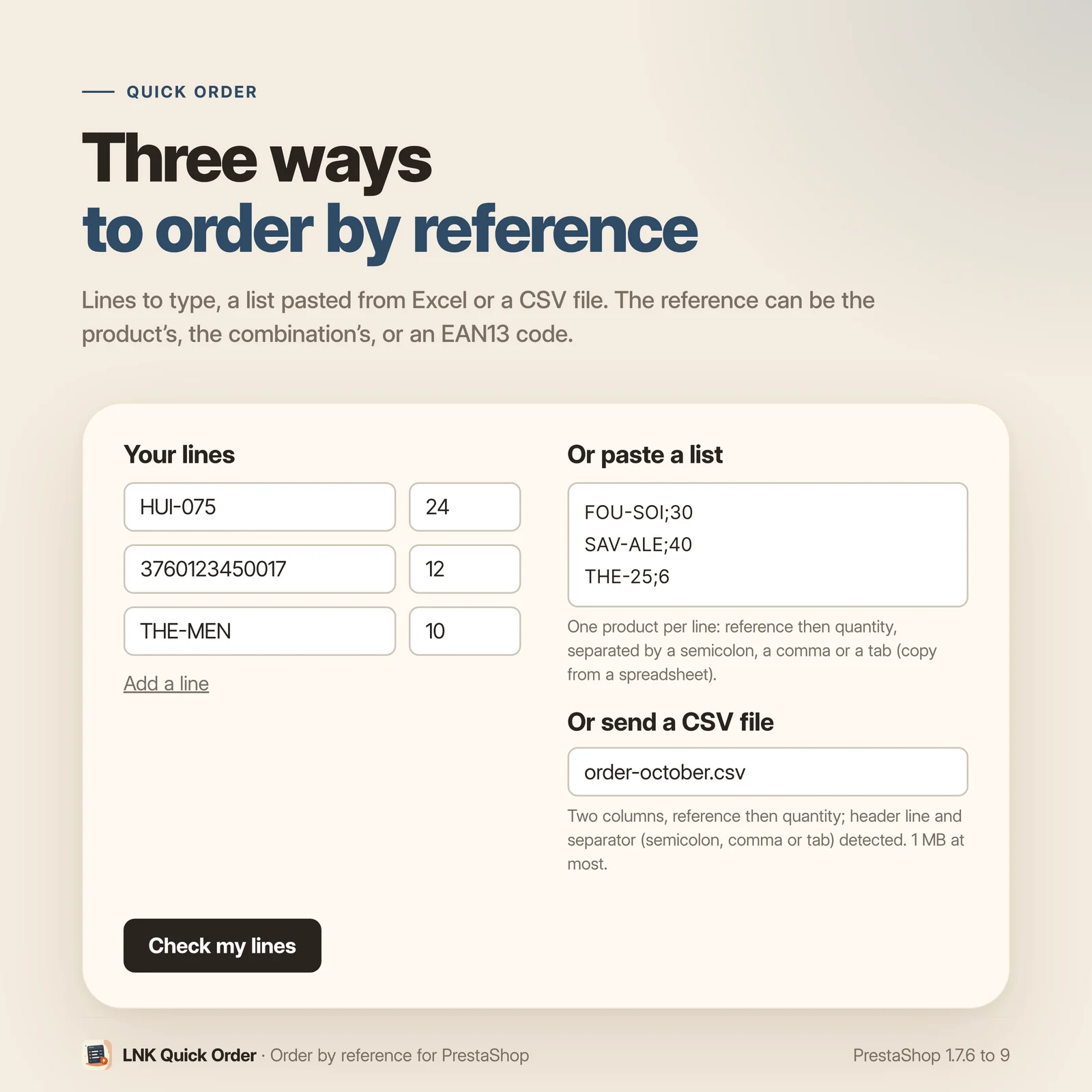
Three ways to order
- Lines: one reference and one quantity per line, as many lines as needed.
- Pasted list: one product per line, reference then quantity, separated by a semicolon, a comma or a tab. A copy and paste from Excel is enough.
- CSV file: two columns, reference and quantity; the header line and the separator are detected, 1 MB at most. The file is read in memory and never kept.
The reference can be the product's, the combination's, or an EAN13 code.
Nothing goes to the cart unchecked
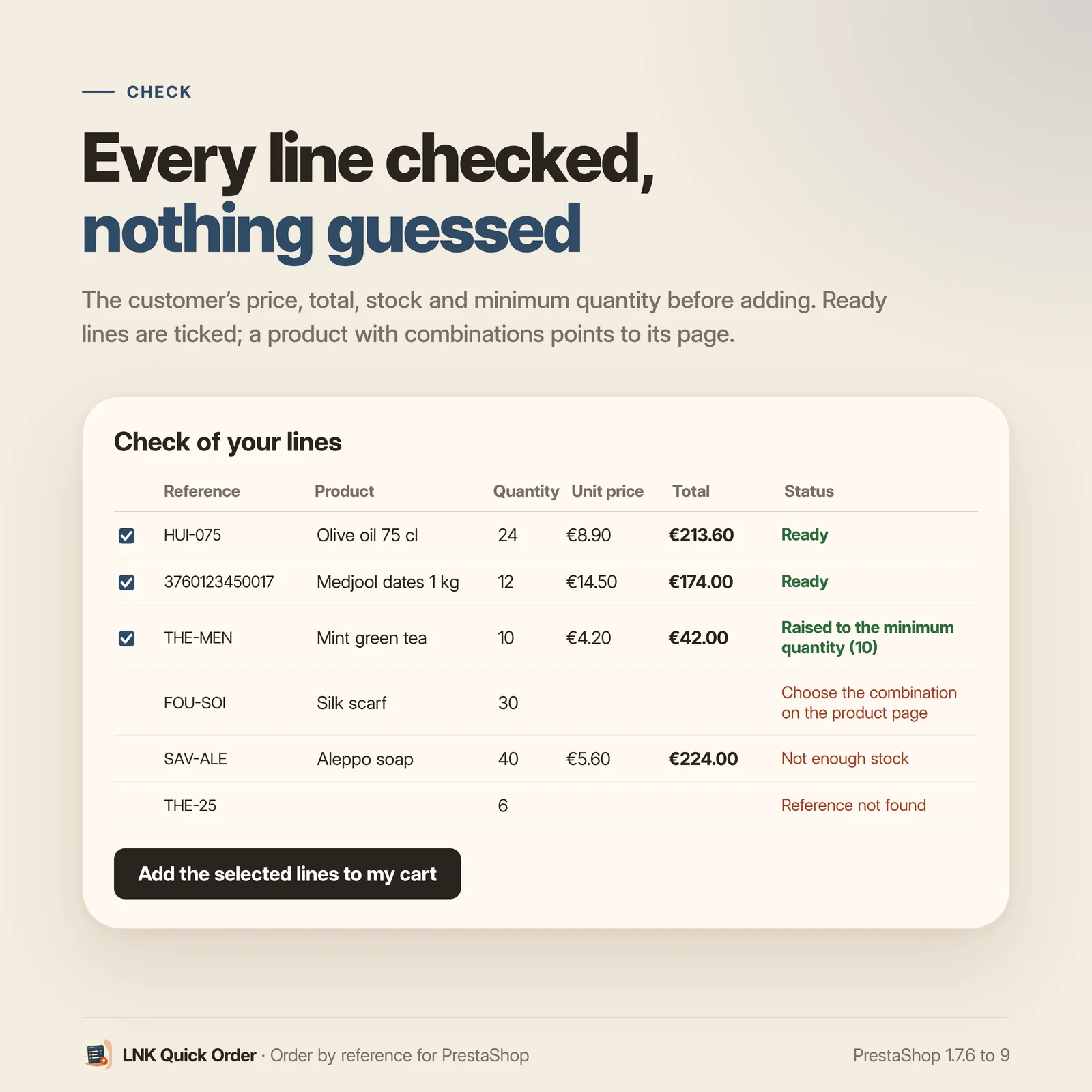
Before adding, the customer sees each line: the product and its combination, its price (the one of their customer group), the total, and the status. A reference not found, shared by several products, a product whose combination must be chosen, insufficient stock or a product not sold online are flagged. A quantity below the minimum sale quantity is raised, and the customer sees it. Ready lines are ticked; one click adds them to the cart.
All combinations at once on the product page
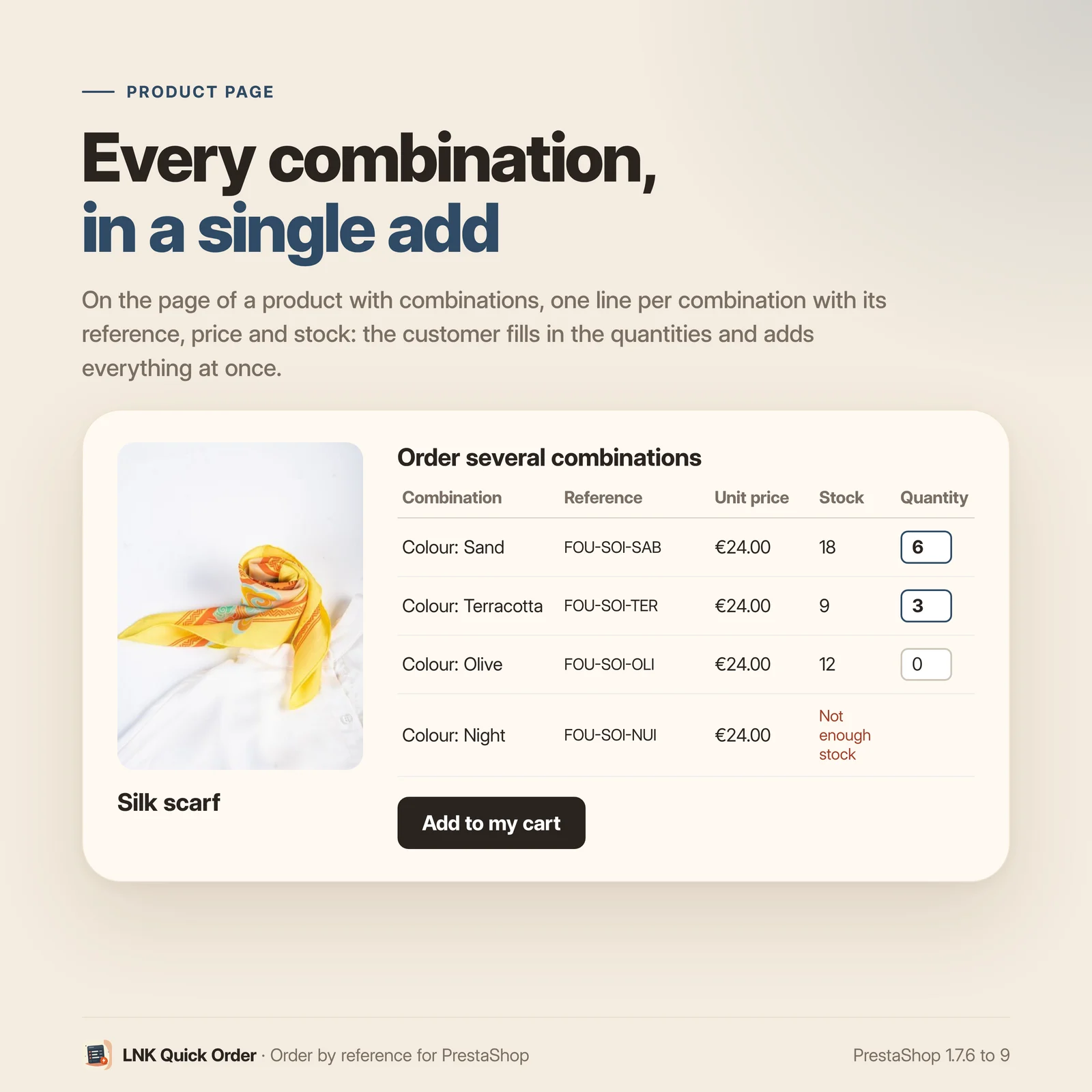
On the page of a product with combinations (sizes, colours, volumes), a table gives one line per combination with its reference, price and stock, and a quantity field. The customer fills the quantities wanted and adds everything at once. The table shows from the number of combinations you choose, under the description, outside the theme's add to cart form.
Nothing to set up
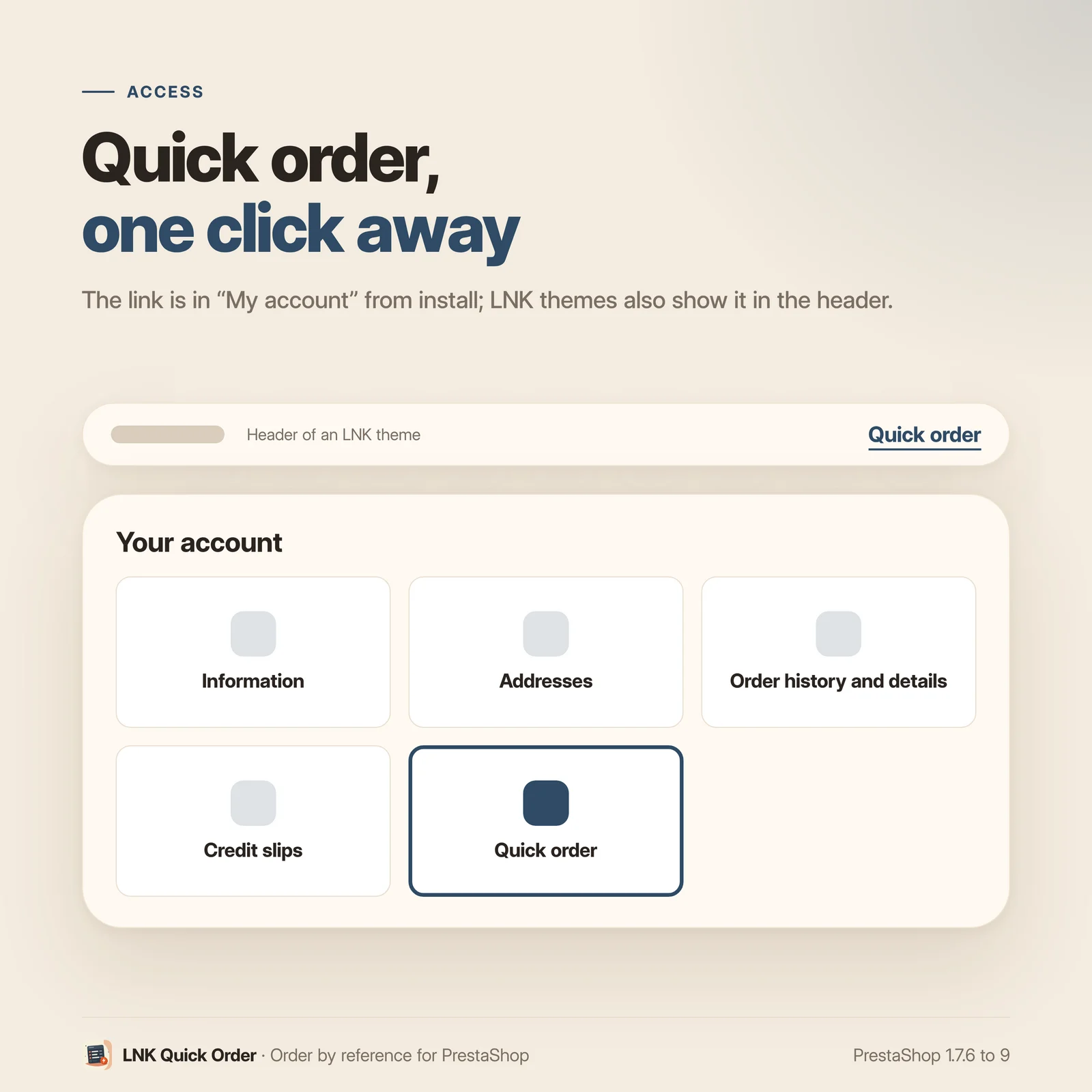
Once installed, the page is online at /commande-rapide, the link is in "My account", and the
table shows on product pages with combinations. Settings only serve to remove what you do not
want.
Light and fast
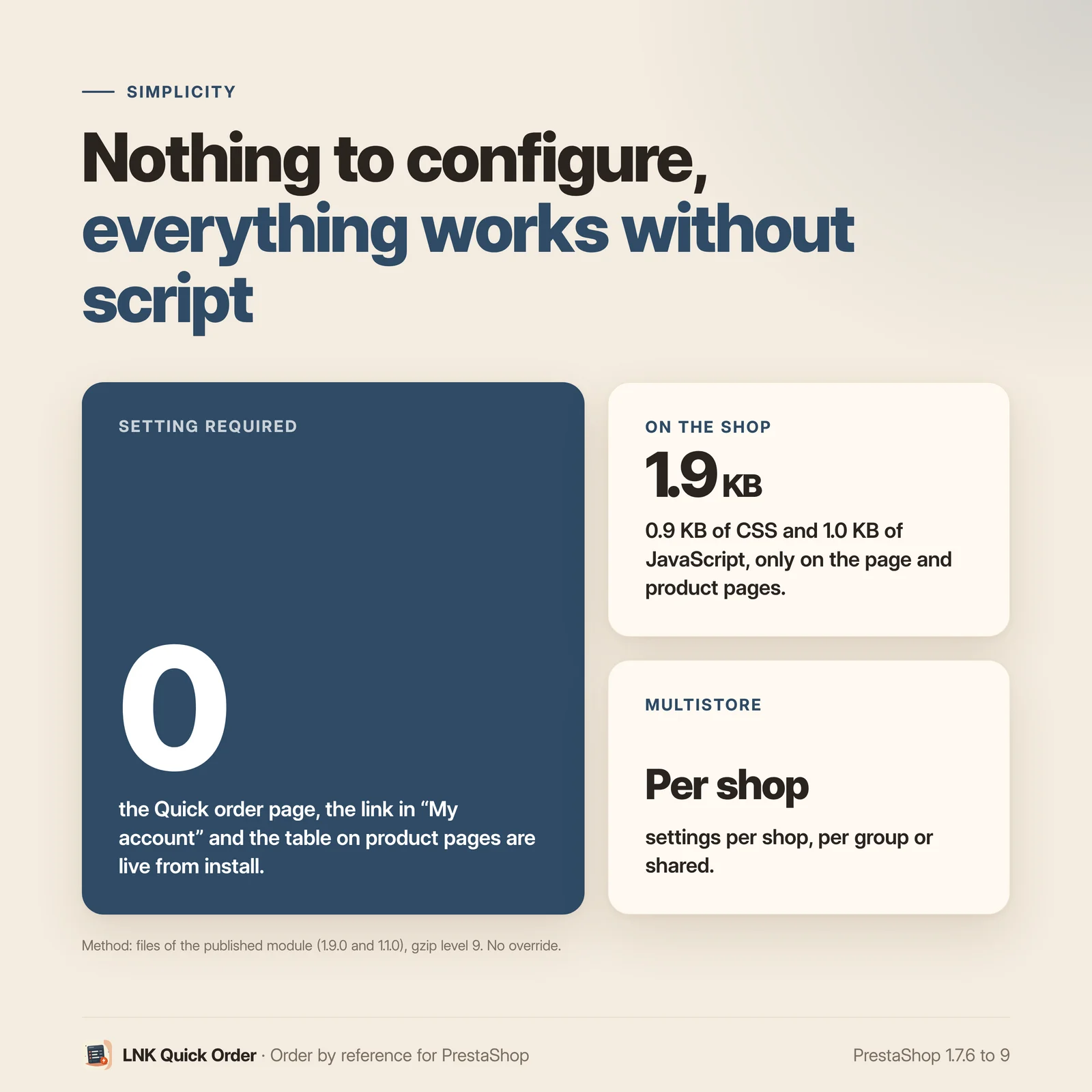
Figures measured on the delivered module, compressed (zlib, level 9): 0.9 KB of CSS and 1.0 KB of JavaScript, loaded only on the Quick order page and on product pages. No stylesheet or script on other pages. Without JavaScript, everything works with forms.
Compatible with PrestaShop 1.7.6, 8 and 9
Two versions of the module, one per generation: 1.1 for PrestaShop 1.7.6 to 8.x, 1.9 for PrestaShop 9, with a native settings page in each back office, under Orders. Classic and Hummingbird themes with no setting; LNK themes place the table and the header link through their hooks (theme contract). No override, no table, no external call.
Frequently asked questions
Where is the Quick order page?
At the /commande-rapide address of your shop, with a link in "My account". A theme can also
place a link in its header ({widget name='lnk_quickorder' mode='link'}).
Which references can the customer type?
The product's reference, a combination's reference, or the EAN13 code. If several combinations of the same product share a reference, the customer is invited to choose the combination on the product page. If several different products share a reference, the line is flagged; nothing is guessed.
How do I paste a list from Excel?
Select the two columns (reference, quantity) in the spreadsheet, copy, and paste into the "Or paste a list" box. Tabs from the copy and paste are understood, like the semicolon and the comma. A line without a quantity counts as 1.
Which format for the CSV file?
Two columns, reference then quantity, separated by a semicolon, a comma or a tab. The header line, if any, is recognised and skipped. Files saved by Excel are accepted. 1 MB at most; the file is read in memory and never kept on your server.
Does the module check stock and prices?
Yes, before adding. Each line shows the customer's price (the one of their group), the total and the status: ready, insufficient stock, not sold online, reference not found. The add to cart then goes through PrestaShop, like the native button, with the same checks.
What happens below the minimum sale quantity?
The quantity is raised to the minimum sale quantity of the product or the combination, and the check says so ("Raised to the minimum quantity").
How many lines can be sent at once?
Up to 500 per sending, configurable from 10 to 500. Beyond, lines are not read and the customer is told.
Does the table of combinations replace the theme's selector?
No: it shows under the description, in addition, from the number of combinations you choose (2 by default). An LNK theme can place it elsewhere through its dedicated hook.
Is JavaScript needed?
No. Without JavaScript, the page and the table work with forms, and the customer goes back to the cart after adding. With it, adding happens without reloading and the header cart updates.
Does the module slow my shop down?
No. 0.9 KB of CSS and 1.0 KB of JavaScript compressed, loaded only on the Quick order page and on product pages.
Does it work with multistore?
Yes. Settings apply to all shops, to a group or to one shop, and the page shows their scope. Each shop only finds its own products.
What is left if I uninstall the module?
Nothing. The module has no table and no override: uninstalling removes its settings and its tab. Carts already filled stay your customers'.
Release history
-
Version 1.9.0 PrestaShop 9
New
- "Quick order" page (/commande-rapide): reference + quantity lines, pasted list "ref ; qty" (copy from a spreadsheet), CSV file (header and separator detected, 1 MB at most, never kept).
- Check before adding: product, combination, customer's price and total, or reason for refusal (not found, several products, combination to choose, stock, not for sale); quantity raised to the minimum sale quantity.
- Grouped add to cart, without JavaScript or without reloading (native updateCart event, then lnk:quickorder:added).
- Table of combinations on the product page, outside the theme's add to cart form, beyond a configurable number of combinations.
- Link in "My account"; header widget for themes; theme contract lnk.quickorder.table/1.
- Settings page on the common look of LNK modules, under Orders, with a live preview of the page and the table.
- Multistore: settings per shop, per group or common.
- French, English and Arabic (right to left).
-
Version 1.1.0 PrestaShop 1.7.6 to 8.x
New
- "Quick order" page (/commande-rapide): reference + quantity lines, pasted list "ref ; qty" (copy from a spreadsheet), CSV file (header and separator detected, 1 MB at most, never kept).
- Check before adding: product, combination, customer's price and total, or reason for refusal (not found, several products, combination to choose, stock, not for sale); quantity raised to the minimum sale quantity.
- Grouped add to cart, without JavaScript or without reloading (native updateCart event, then lnk:quickorder:added).
- Table of combinations on the product page, outside the theme's add to cart form, beyond a configurable number of combinations.
- Link in "My account"; header widget for themes; theme contract lnk.quickorder.table/1.
- Settings page on the common look of LNK modules, under Orders, with a live preview of the page and the table.
- Multistore: settings per shop, per group or common.
- French, English and Arabic (right to left).